











Your store already has a product catalog that can only show shoppers what you sell without helping them decide what to buy. In a real store, a sales associate could ask a few questions and narrow down the options for the customers. Online, that customer may simply browse for a while and leave.
This is where Dify's New Agent can help. You can build an agent around a real task, refine it through conversation, and reuse the resulting capabilities in other business processes. For an ecommerce store, that could mean helping shoppers explore the catalog, understand the differences between products, and narrow down their options. When a request needs more attention, such as a large corporate order, the same agent can work inside a workflow that brings someone from your team into the process.
In this tutorial, we’ll build that experience for DOWSE, an independent ecommerce store selling homeware and lifestyle products. Start with a pre-sale Agent that can browse its catalog, then we upgrade the same agent into a personal shopping guide, and finally let it to route and email high-value inquiries to your team.
Start With an Agent That Knows Your Catalog
Before an agent can help customers choose, it needs to know what your store sells.
For the initial version, let’s keep the job simple: when a shopper describes what they need, the agent should search DOWSE’s catalog, find relevant products, and return useful details with links. Think of this process as giving a new sales associate time for onboarding.
Create an Agent in Dify and open Build mode. Instead of configuring its prompt and tools one by one, describe the job you want it to do:
Build a pre-sale shopping assistant for https://dowsedesign.co.uk/. It should search the store’s public product pages and use them to answer customer questions. When recommending a product, include its name, price, a short explanation, and a direct link. Only use product information that can be verified on the website.
Dify works through the setup with you and updates the proposed changes for review. You can see which skills and files are being added and continue refining the agent through the same conversation just like you’re talking to your teammate.
Once the initial setup is ready, click Apply. Next, click Preview for test communication that sounds like something a real customer might ask: I’m looking for a housewarming gift under £40. Can you show me a few options?
Check whether the Agent stays within the budget, selects products that fit the occasion, and links to the correct pages. Product names, prices, and other factual details should match the webpage. If the result is too broad or contains too many choices, click Build for going back to the building process, then tell the agent what an expected answer should look like, for example:
Recommend no more than four products. Briefly explain why each one would make a good housewarming gift, and don’t include anything you can’t verify on the store.
Switching between Build and Preview mode is helpful for refining the Agent’s responses so they fit your requirements. Use Preview to test a few more requests before publishing the Agent, including different budgets, occasions, and product types, to make sure it searches the catalog consistently. At this point, you have a working pre-sale assistant that can help shoppers discover products without requiring your team to answer every catalog question manually.
But product discovery is only the beginning.
Turn Product Search Into Personal Shopper
Finding a product is useful, but a personal shopper does more than simply return a list of search results. They learn who the customer is shopping for, notice the constraints behind the request, and explain why one option might work better than another. Let’s continue develop the agent without configuring everything from scratch.
Return to Build mode and send further instructions to improve the Agent you already created:
Upgrade this Agent into a personal shopping guide. Before recommending products, identify the customer’s budget, occasion, recipient, and preferences. If important details are missing, ask one or two concise follow-up questions. Recommend no more than four verified products, explain why each one fits, and help the customer compare the options.
Make the Recommendations Visual
Shopping is visual, so a list of product names and links may not be enough. Ask the agent to return corresponding product image when returning the product name.
Let’s go back to Build mode, and ask agent to retrieve current product name, price, product URL, and image URL.
Give Shoppers Somewhere to Start
A blank chat box can make customers unsure what to ask. Use the Conversation Opener to welcome the customers, then add clickable starter questions to encourage shoppers to start the conversation.
For a seasonal campaign, you could use options such as Explore new arrivals, Shop Mother’s Day gifts as the starter questions. Switch to the Preview mode and test different customer profiles and correct the agent when its questions or explanations are not helpful. These improvements belong to the same agent, so it can evolve with your catalog and customer needs.
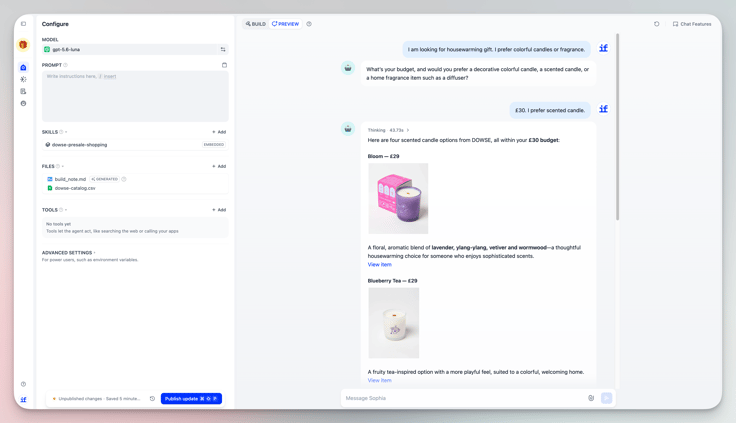
You now have an agent that can handle many pre-sale conversations on its own. But when a customer wants to place a large or high-value order, the better next step may be to involve someone from your team.
Turn Large Orders Into Warm Leads
Some shopping conversations should lead directly to your team, for example, bulk orders, custom pricing, product availability, etc. Give the agent clear rules for when and how to send a message.
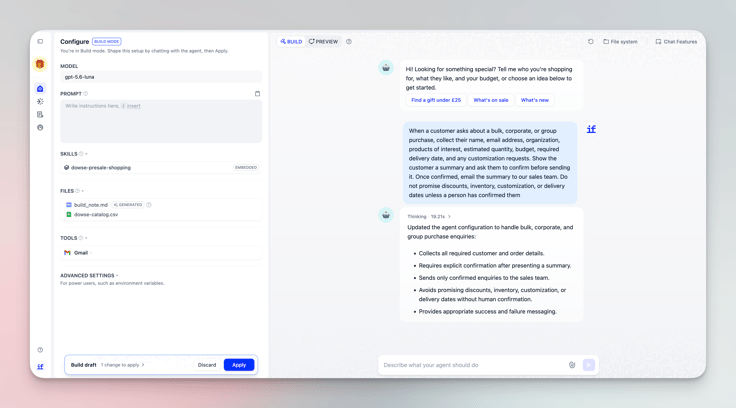
Connect Gmail to the Agent
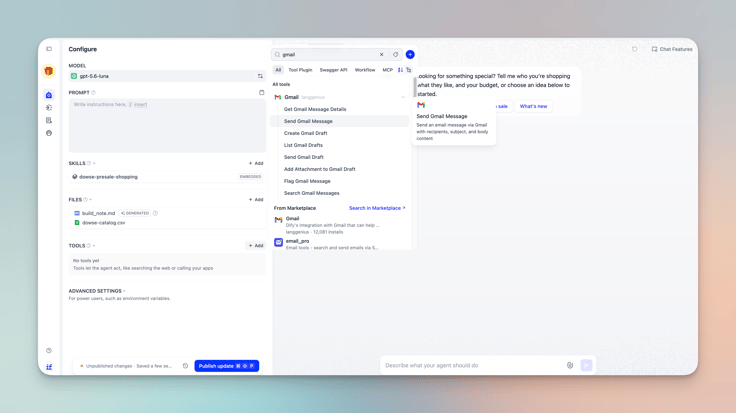
Open the Agent’s Tools section and select Add a Tool. Find and install the Gmail plugin from Dify Marketplace, then complete the authorization process for the Gmail account the Agent will use.
Adding the tool gives the Agent the ability to send email, but it still needs instructions explaining when and how to use that ability. Add the following rules to the Agent’s main prompt and use / to point out skills and tools.
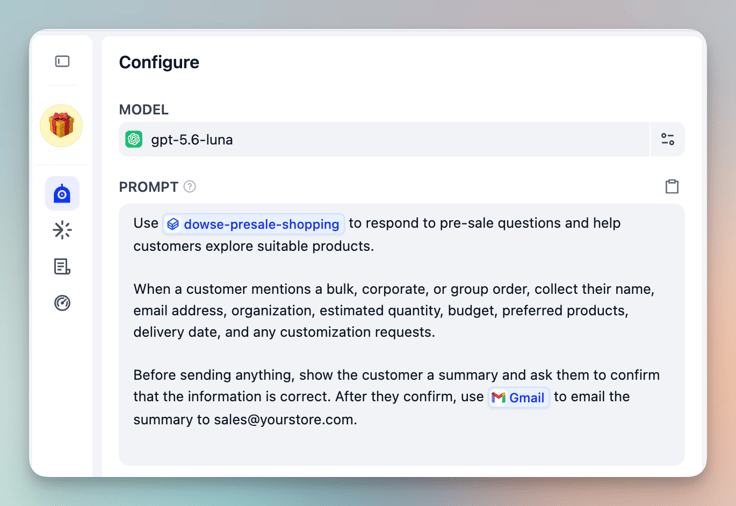
The agent can now handle ordinary product questions itself and notify your team when it recognizes a larger opportunity.
The agent can suggest relevant products, ask about the occasion and deadline, and organize the answers into a concise sales inquiry. Once the customer confirms the details, it sends the summary to a fixed email address for your team.
In the tuning process, leep clear boundaries around what the agent can promise. It can help qualify the opportunity, but questions about volume discounts, stock commitments, customization, and delivery guarantees should remain with the person who follows up.
Build Your Agent Now
You do not need to automate the entire customer journey at once. Start with one question your customers already ask, give the agent access to the information it needs, and test it with real questions.
With Dify, you can build an agent once, and improve it as your business grow. From here, you can continue expanding the same agent without rebuilding it. Publish it as an app, connect it to your online store, or invite it into a workflow. Inside a workflow, the agent can take on a specific task while keeping the tools and shopping capabilities you have already configured.
Related articles
- How to
AI Agent or Workflow? How to Choose the Right Approach
Learn when an AI agent is a good fit, when a workflow is more reliable, and how IT teams can test and govern either approach.
 Anne Zhu
 - How to
I Patched Calendly with New Agent
Use an Agent to make the software you already rely on work the way you work without rebuilding the whole thing.
 Alex
Alex - How to
How to Build Your First Agent in Dify
Learn how to build an agent in Dify without coding or learning all the technical details. Create an agent, customize it through chatting, and use it as a standalone app or add it to the workflow.
Anne Zhu - How to
How to Let Your Agent Call Dify Workflows Directly
Learn how to quickly invoke existing Dify apps, turning complex business workflows into a single prompt and one human approval.
 Zhenan Sun