












An AI app that begins as a team project can quickly become part of a company's daily work. Employees open it in a browser directly, internal systems send it data through webhooks, and other applications connect to its services.
For central IT and AI transformation teams, wider use brings a practical question:
Can we restrict access to specific IP addresses?
A web app address might be shared, or an app link might reach someone outside the organization. Even when an app is intended for internal use, a request could come from anywhere unless the team can set a boundary.
IP Access Control for Apps gives teams the control, and available on Dify Cloud Professional and Team plans. It lets them specify which IP addresses or ranges may access an app and choose which of the app's access points to protect.
Create a Reusable IP Allowlist
Workspace owners and admins can create an IP policy with an allowlist of addresses or ranges that may access their apps. The policy can then be used across multiple apps.
IT can name a policy for a team or use case, then apply it to any relevant apps. When its IP addresses change, IT updates the policy once.
Apply an IP Policy to an App
An IP policy groups the addresses or ranges you want to allow. On an app's **Access Point** page, select that named policy, then choose which access points it protects. Depending on the app, these can include its web page, service API, MCP server, and triggers such as webhooks.
For an app that receives data from an internal system, the team can restrict its webhook to requests from that system's network. If employees also use the app's web page, the team can decide whether to protect that entry point as well. Each app can have a setup that reflects how people and systems actually use it.
Check Protection at a Glance
The app' s Access Point page shows whether IP access control is on and how many access points it covers. Members with the appropriate permissions can review the selected policy and coverage.
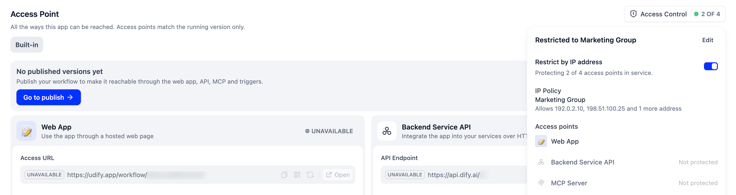
That visibility helps when an app is ready for wider use. An IT reviewer can check whether both its web page and webhook are protected, without relying on a record of what someone configured earlier.
If IT temporarily turns off Access Control for an already configured workflow, its status changes to **PAUSE**. The IP policy and selected access points stay saved, ready to use again when protection is turned back on. While paused, the IP restriction is not enforced.
Make Access Issues easier to Look into
Someone who opens a protected app page from a network that is not allowed will see an access message and their current IP address. They can share that address with an administrator for help.

If an employee can use an app at the office but cannot open it from another location, IT has a concrete starting point: check the address and decide whether that network should be allowed.
Get Started
If your team is on a Dify Cloud Professional or Team plan, create an IP policy under Settings → IP Policies. Then open an app's Access Point page, select the policy, and choose the access points.
Once the policy is in place, your team can reuse it as more agents, workflow, application built in Dify come into use.
For detailed setup steps and configuration options, see the IP Access Control guide in Dify Docs.
Related articles
- Release
Introducing New Agent
Build agents by chatting. Dify automatically generated reusable skills and preserves the context during the conversation. When it's ready, add it into the workflow for a bigger process.
 Zhenan Sun
- Release
Dify's Official CLI: difyctl Ships
Dify introduces CLI access, making it easy for Agents to call Dify apps with a single command.
Zhenan Sun - Release
Build · Share · Earn: Dify Creator Center And Template Marketplace Are Now Live
A unified platform for creators to publish and for users to discover, enabling workflows to be quickly reused and adopted at scale.
Zhenan Sun - Release
Dify 1.14.1: Workflows Become a Team Asset
Move workflows from “built” to “continuously used and reused,” so AI can fit into enterprise processes.
 Dify