











In Dify, you can upload and store your documents under Knowledge (that's what the feature is called in the menu). You can think of a knowledge base as one labeled box of documents — your own PDFs, Word files, or notes that your AI app can read and answer questions from. You can create more than one, and each can be set up its own way (for example, how its text is split into pieces), and we'll get to those settings later.
This short guide goes with the Knowledge: Chat with Your Documents template in Learn Dify, or feel free to use it as a reference for creating your first knowledge base. You only need to do this once: create your knowledge base here, then connect it to the template. No coding required, about 5 minutes.
You need to prepare a document to upload. Anything works, whether it’s a product guide, an FAQ, policy. These are the supported file types: PDF, DOCX, DOC, PPTX, PPT, XLSX, XLS, CSV, TXT, MD, MDX, MARKDOWN, HTML, HTM, XML, EPUB, EML, MSG, VTT, and PROPERTIES.
You can upload one file at a time, up to 15 MB each (limits may vary by pricing plan).
Part 1. Create Knowledge
Step 1: Enter Knowledge
Click Knowledge in the left sidebar, then start a new one. There are 3 options. Please choose Create a ready-to-use knowledge base.
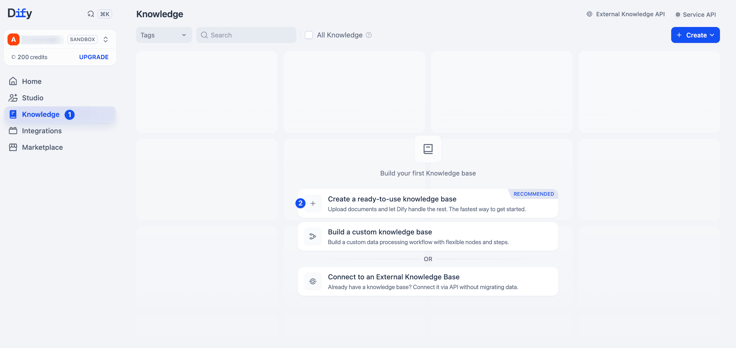
Step 2: Upload your File
There are three ways to bring in content: Import from file, Sync from Notion, and Sync from website. Syncing from Notion or a website needs an extra connection or provider set up first, so for your first knowledge base, we'll use Import from file, which is the most straightforward and easy one to get started.
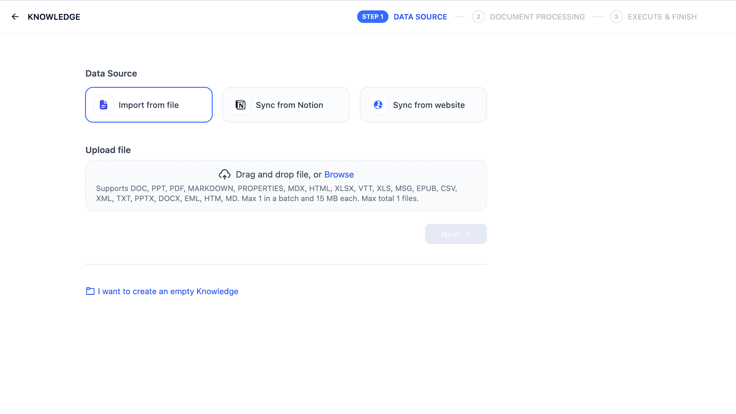
Choose Import from file, then pick the document you want to use. Click next for the upload.
Step 3: Settings
This screen has three groups of settings: Chunk Settings, Index Method, and Retrieval Setting.
This screen has three sections. Here's what each one does and what to pick for a basic knowledge base:
Chunk Settings: how your document is split into pieces.
Dify devides your document into smaller chunks so it can find the right part quickly. Keep General (the default) here; it works well for most documents.
Index Method: how those pieces are stored for searching.
Choose High Quality (recommended). The other option, Economical, only matches exact keywords.
High Quality needs an embedding model which turns your text into something searchable by its semantic meaning. If you're not sure which embedding model to choose, a small, general one like OpenAI's text-embedding-3-small works well for a basic knowledge base. Kindly notice that, once finishing embedding in High Quality mode, reverting to Economical mode is not available.
Retrieval Setting: how your question is matched to the pieces.
Keep the default. Dify picks a sensible method based on your Index Method above, and you can change it anytime later.
Here’s what we’ve chosen:
Chunk Settings → General
Index Method → High Quality
Retrieval Setting → Vector Search. That's all three settings done.
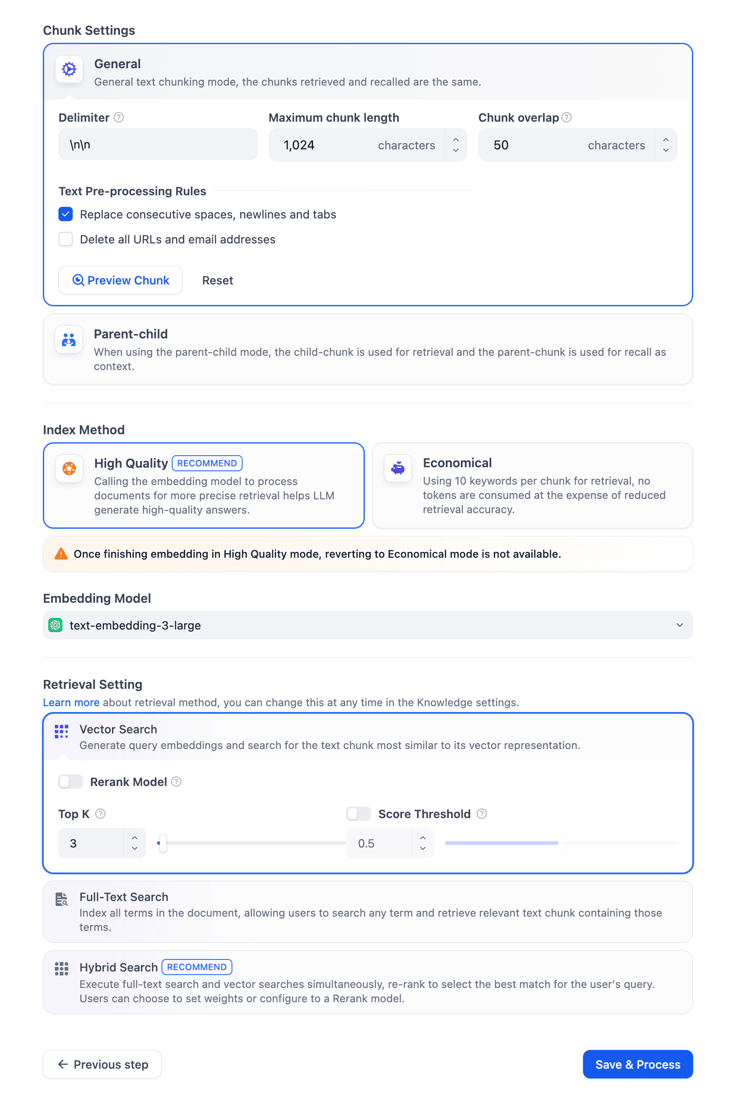
Let’s keep other defaults: Delimiter, Maximum chunk length, Top K, etc.
💡 Want to know what those do? See Dive into the Settings near the end.
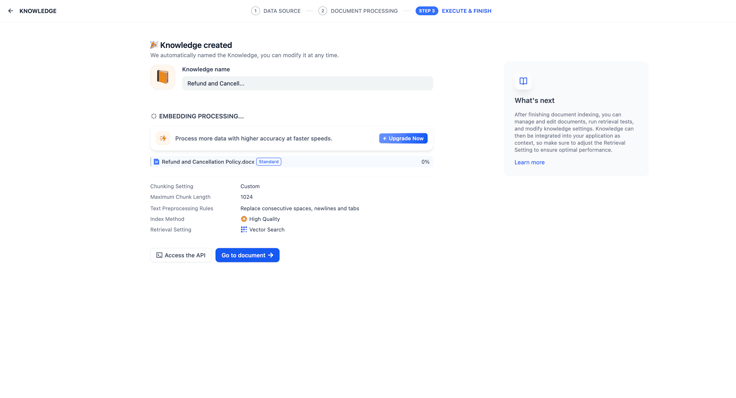
Step 4. Save and process
Optional: chunk preview.
Before saving, you can click Preview Chunk to see exactly how your document will be split into pieces. It's a quick way to confirm things look right.
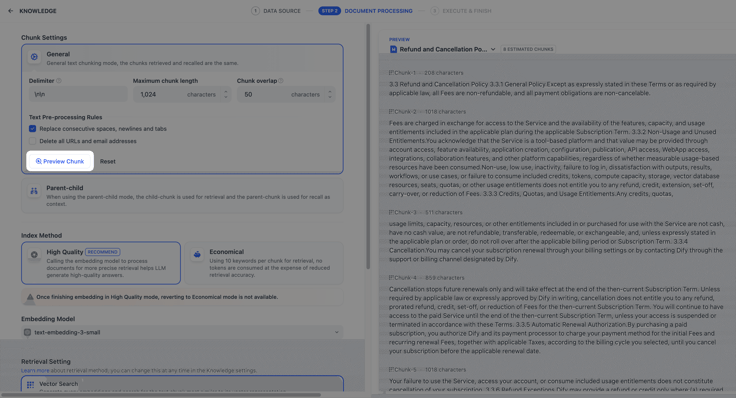
Click Save and Process. It takes a moment to process your document before your knowledge base is ready.
Part 2. Connect it to Your Chatbot
Now, let’s link your new knowledge base to the "Chat with Your Documents" template:
- Go back to the Knowledge: Chat with Your Documents template.
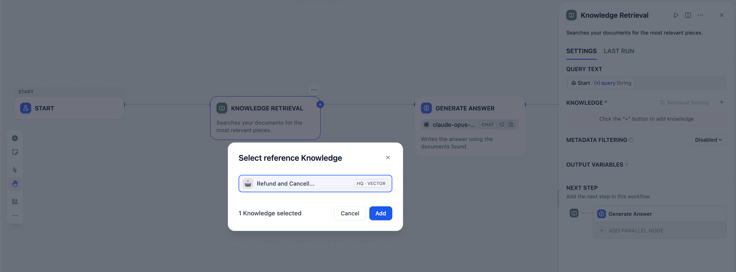
- Click the Knowledge Retrieval node in the middle.
- In the panel on the right, click the + next to Knowledge, and select the knowledge base you just created.
That's it! You've created a knowledge base, connected it to your chatbot, and learned what the main settings do. Your bot can now answer from your own documents.
————
Optional: Dive into the Settings
In Step 3 you met the three settings: Chunk Settings, Index Method, and Retrieval Setting. Here's a closer look at the other choices each one offers (beyond the recommended defaults), and how they connect.
Chunk Settings: the splitting style:
- General: simple, even pieces. Best for most documents (and what this guide uses).
- Parent-Child: smarter splitting for special cases (large manuals, FAQ lists). More advanced.
Index Method: meaning vs. keywords:
- High Quality: use an embedding model to understand meaning. Recommended.
- Economical: free, but matches keywords only, so it misses questions that don't share the document's exact words.
Retrieval Setting: how a question is matched:
- With High Quality: by meaning (Vector), by keywords (Full-text), or both (Hybrid).
- With Economical: keyword search (Inverted Index).
What about the Rerank Model?
It's an optional way to optimize results accuracy in more advanced setups (like Hybrid search, or searching several knowledge bases at once), and it usually needs a separate model set-up.
How they fit together
Your Chunk Structure decides which Index Methods you can pick, which in turn decides your Retrieval options:
| Chunk Structure | Header 2 | Header 3 |
|---|---|---|
| General | High Quality | Vector · Full-text · Hybrid |
| General | Economical | Inverted Index |
| Parent-Child | High Quality Only | Vector · Full-text · Hybrid |
Want to go deeper? Settings like Top K score thresholds, chunk size, and number of keywords let you fine-tune accuracy. You can find more in the Dify docs : Chunking & cleaning text and Indexing methods & retrieval.
Already have your documents somewhere else?
If your content already lives in another system, you don't have to re-upload it. On the create screen (Step 1), choose Connect to an External Knowledge Base. It links to your existing knowledge base via API, without migrating your data. You can read connect to external knowledge doc for further guidance.
Related articles
- How to
How to Create an AI Shopping Agent that Boosts Your Ecommerce Store
From catalog scraper and personalized recommendations to qualified lead capture, learn how to build an AI agent for your online store with Dify.
 Alex
Alex - Product
Dify x Sonilo: Give Your Video Workflows a Licensed Soundtrack
Turn finished videos into soundtracked outputs with Sonilo on Dify. Generate licensed music and sound effects matched to each cut, all within the same workflow.

 Sonilo & Dify
 - Product
From Discovery to Response: A More Connected Dify Marketplace
Good work goes further with better ways to find it, build with it, and share what you learn
 Yajing Wang
 - Research
Trust Is a Feature: How Dify Is Governing a Growing Plugin Ecosystem
Security, transparency, maintenance, and the systems behind a marketplace people can rely on.
 Li
Li