











I was paying for Calendly mainly for one feature: automatically reminding attendees on the day of a meeting. The paid plan included other useful features, but I did not really need them. My actual requirement was much smaller:
Every morning, find today's meetings and remind each attendee.
Paying for an entire upgrade for one workflow felt excessive, and rebuilding Calendly obviously made no sense either. So I tried a third option: I patched Calendly with an Agent. Here comes a small workflow that looks like this.
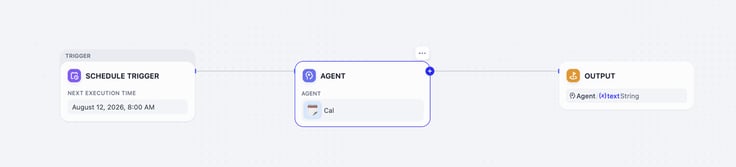
Every morning, the workflow wakes up Cal, the agent. Then, Cal checks for today's meetings and reminds the attendees with emails.
Patching SaaS with an Agent
A SaaS patch does not modify the product or unlock functionality inside it. Instead, the Agent connects to the product, reads the data available to me, applies my rules, and performs the missing action through another tool.
In this case:
Calendly provides my meeting schedule -> Agent applies my reminder rules -> Gmail sends the email
As we can see, Calendly still handles my meeting scheduling, while agent works with it to fill the small gap between the product and the way I want to work. Here's how I make this patch live.
Step 1: Build the Reminder Agent
Open Agents in Dify, select Create, anc choose Create from Blank. In the pop up window, fill in name, role, and description.
Here, I named it Cal.
Next, choose a model. If you do not have a preference, select one with Recommended mark.
A recommended model is a practical starting point because Dify has already identified it as suitable for the Agent experience and tool use. You can change it later if you want to optimize for cost, speed, or a particular model provider.
Next, let's switch to Build Mode by telling the task and the final result.
Build mode lets you configure an Agent through conversation instead of filling in every setting first. You can walk the Agent through a real task, correct it, and try again. Dify can turn the repeatable method into a Skill and preserve important setup decisions in a Build Note for future runs. You can review these proposed changes in the Build draft before applying them.
For a broader explanation of Build Mode, you can check Dify's official documentation
Step 2: Connect the Calendly MCP and Gmail
This agent needs tools to read the schedule meeting and send the reminders.
Install Calendly MCP
Calendly provides an official hosted MCP server which gives this agent a structured set of Calendly actions. For this patch, Cal mainly needs to list scheduled events and retrieve the invitees for each meeting only.
In Build mode, I simply asked: install Calendly MCP.
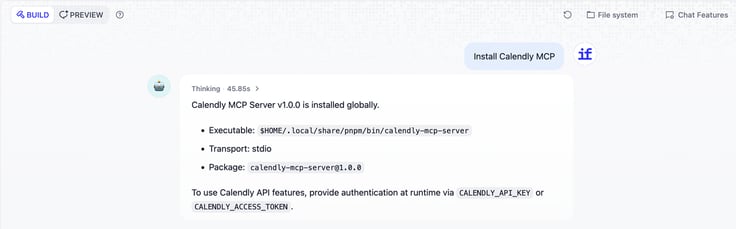
When the installation finished, Build mode showed the executable, transport, package version, and the two environment variables the server can use for authentication:
CALENDLY_API_KEYorCALENDLY_ACCESS_TOKEN
Create a Calendly Personal Access Token
Search API and Webhooks in Calendly integrations. After clicking it, choose personal access tokens, and select get a token now. Copy the token and return to the build mode.
Open the environment variable settings and paste the API key there.
Do not paste the real value into the Build conversation, Prompt, Build Note, Skill, or a File. Those places are for instructions and reference material, not secrets.
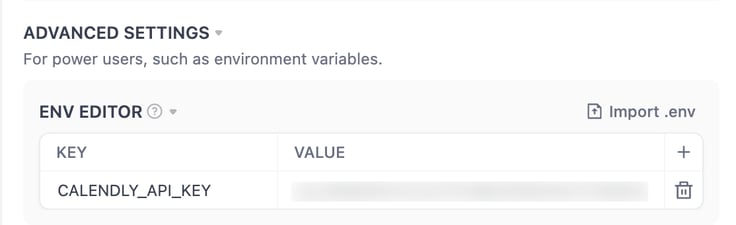
After saving it, return to build mode for connection verification. Simply asking the agent to use Calendly MCP to list today's meetings and invitees. Do not create, change, or cancel an event, and do not send any emails.
Add Gmail Tool
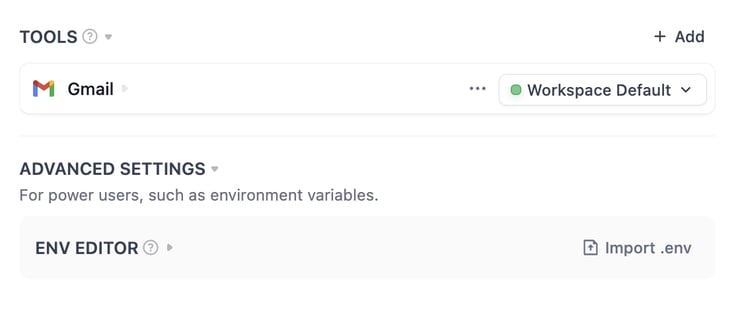
Click Add in Tools, and search Gmail. Install and complete the OAuth setup.
Step 3: Give the Agent an Email Example
We've already set up Cal with the right systems. Next, I will provide a sample email to make sure the reminder follows the same pattern every time.
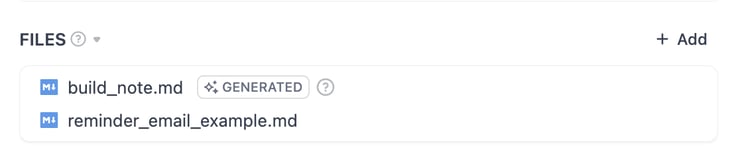
This is where File works. A file gives the agent reliable reference material: a template, guildelines, or an example of writing piece. It simply shows the agent what to follow while finishing the task. Here, I added reminder_email_eamxple.md with email sample included.
Step 4: Add Main Prompt
The agent still needs one clear main prompt that tells it how and when to use the tool and files for completing the task. Type / and select the tool in Prompt box. Feel free to use the prompt below or edit it.
You are a scheduling assistant.
When prompted, you use Calendly MCP to fetch the user's upcoming meetings, and draft an email to remind the attendees.
Refer to reminder_email_example.md for an example of such an email. You need to follow the format, replacing necessary fields like attendee's name, time and place. You are NEVER to alter the company intro in the last paragraph.
Use Gmail to send the email out to the attendees.
Now, everything is ready. Click publish update to make this agent live.
Schedule it in a Workflow
The last step is to make this agent run every morning. Let's create a workflow in Dify, and choose Schedule Trigger as the start node. Add Cal as the second node, then add output as the second node.
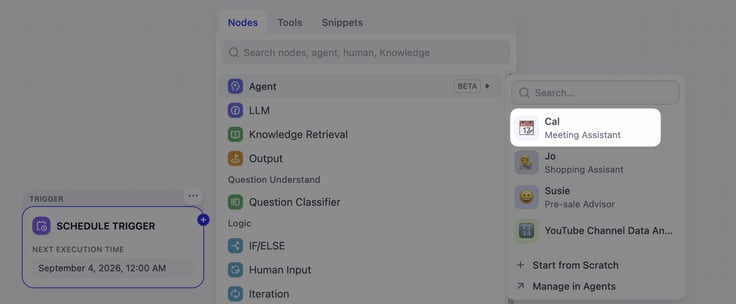
Dify's Schedule Trigger is available in Workflow applications and can run a workflow at a chosen time or interval. For a simple daily schedule, use the visual schedule picker. See the Schedule Trigger documentation for the available schedule and cron options.
Test run this workflow, and if everything works. Publish this workflow, and you have an automatic meeting reminder assistant.
Patch Your Own Software with Agent
Just as many software gaps, they don't request a rebuilding project. You can use agent to build a small patch to bridge that gap and make this software work for you.
What SaaS product almost fits the way you work? Instead of replacing it, try patching the missing step with an Agent.
If you build one, share what you patched and how you connected it.
Related articles
- How to
AI Agent or Workflow? How to Choose the Right Approach
Learn when an AI agent is a good fit, when a workflow is more reliable, and how IT teams can test and govern either approach.
 Anne Zhu
 - How to
How to Create an AI Shopping Agent that Boosts Your Ecommerce Store
From catalog scraper and personalized recommendations to qualified lead capture, learn how to build an AI agent for your online store with Dify.
 Alex
Alex - How to
How to Build Your First Agent in Dify
Learn how to build an agent in Dify without coding or learning all the technical details. Create an agent, customize it through chatting, and use it as a standalone app or add it to the workflow.
Anne Zhu - How to
How to Let Your Agent Call Dify Workflows Directly
Learn how to quickly invoke existing Dify apps, turning complex business workflows into a single prompt and one human approval.
 Zhenan Sun