




Connect InfraNodus GraphRAG as an External Knowledge Base in Dify
How to integrate InfraNodus as an external knowledge base in Dify, enabling GraphRAG-powered retrieval without data migration. It covers graph setup, API configuration, and workflow integration to improve contextual and high-level question answering.

Dify's External Knowledge Base feature enables seamless integration with third-party knowledge systems, allowing you to leverage specialized retrieval technologies without migrating your data. This guide walks you through connecting InfraNodus—a text network analysis tool with built-in GraphRAG capabilities—to your Dify workflows.
Why Connect InfraNodus to Dify?
Traditional RAG systems rely on vector similarity search, which works well for specific queries but often struggles with broad or contextual questions like "What is this about?" GraphRAG addresses this limitation by incorporating the structural relationships between concepts in your knowledge base.
By integrating InfraNodus as an external knowledge source, you gain several advantages:
- Enhanced retrieval quality: GraphRAG returns both semantically matched statements and structurally relevant content from your knowledge graph's topical clusters
- Visual knowledge management: InfraNodus provides an interactive graph visualization of your knowledge base, revealing main topics, concept relationships, and content gaps
- Flexible data ingestion: Import content from PDFs, websites, YouTube videos, plain text, or custom ontologies into a single queryable graph
- Multi-platform compatibility: The same InfraNodus graph can power Dify workflows, MCP server connections, or direct API integrations
Quick Setup Overview
The integration process involves four main steps:
- Build a knowledge graph in InfraNodus using your source content
- Generate an API key from the InfraNodus platform
- Configure an External Knowledge API connection in Dify pointing to the InfraNodus endpoint:
https://infranodus.com/api/v1/dify - Add the external knowledge retrieval node to your Dify workflow
Understanding the GraphRAG Retrieval Flow
When a user query reaches the knowledge retrieval node, InfraNodus processes it through its GraphRAG system. Unlike standard vector search that only finds semantically similar text chunks, this approach:
- Identifies graph regions relevant to the query terms
- Retrieves relationship data between connected concepts (GraphRAG)
- Supplements results with traditional RAG similarity matches
- Returns contextual statements from the most relevant topical clusters
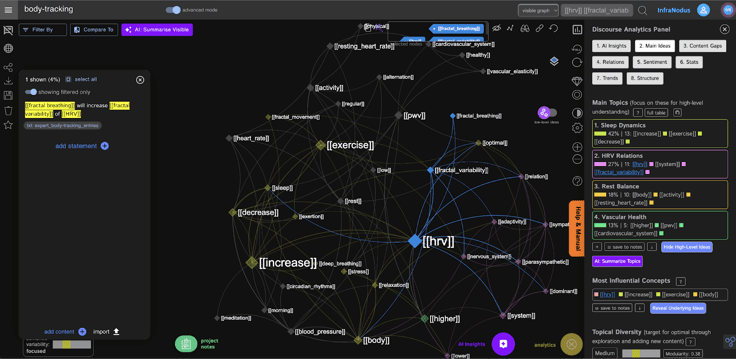
This hybrid approach ensures that even vague queries receive meaningful context. When users ask general questions, the system can still surface relevant information based on the knowledge graph's structure rather than failing to find direct semantic matches.
Step 1: Building Your Knowledge Graph in InfraNodus
Before connecting to Dify, you need a populated knowledge graph in InfraNodus.
Creating Your Graph
Navigate to infranodus.com/apps and choose your preferred import method:
- Text Editor: Manual input for custom content
- File Import: Upload PDFs or documents
- URL Scraper: Crawl websites or specific pages
- YouTube Importer: Extract transcripts from videos
- AI Ontology Generator: Auto-create structured knowledge from prompts (infranodus.com/import/ai-ontologies)
For example, using the ontology generator with a prompt like:
create an ontology for various body metrics that can be used for longevity
This generates a structured knowledge graph that serves as the foundation for your external knowledge base.
Optimizing Graph Quality
After initial creation, review your graph for completeness. InfraNodus highlights disconnected topic clusters—areas where concepts aren't well-linked. You can:
- Select unconnected nodes or topics
- Use the built-in AI module to generate bridging statements
- Add these connections to strengthen the knowledge graph structure
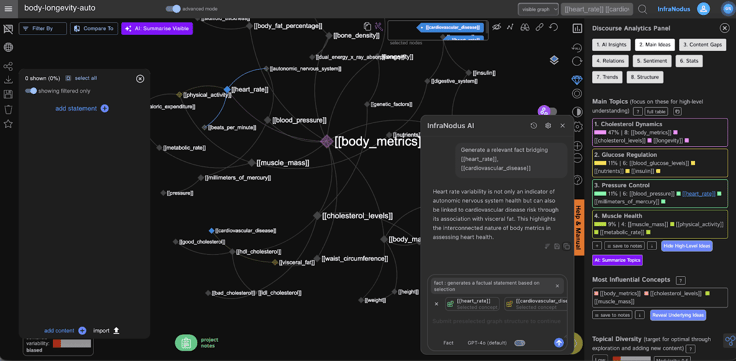
A well-connected graph improves retrieval accuracy by ensuring related concepts can be traversed during queries.
Step 2: Configuring the External Knowledge Connection in Dify
With your InfraNodus graph ready, configure Dify to access it as an external knowledge source.
Creating the External Knowledge API
- Open your Dify instance (cloud or self-hosted) and navigate to the Knowledge section
- Click Connect to External Knowledge
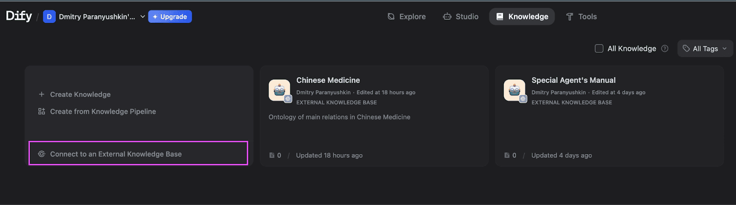
- Enter a name and description for your knowledge base
- Select + Create a new External Knowledge API
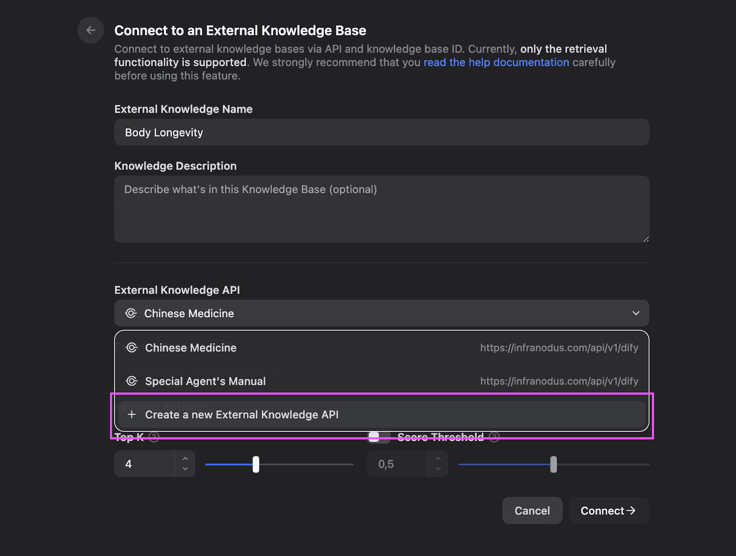
- Configure the API connection with these details:
- Name: A descriptive identifier for this connection
- Endpoint URL:
https://infranodus.com/api/v1/dify - API Key: Your InfraNodus API key (generate one at infranodus.com/api-access)
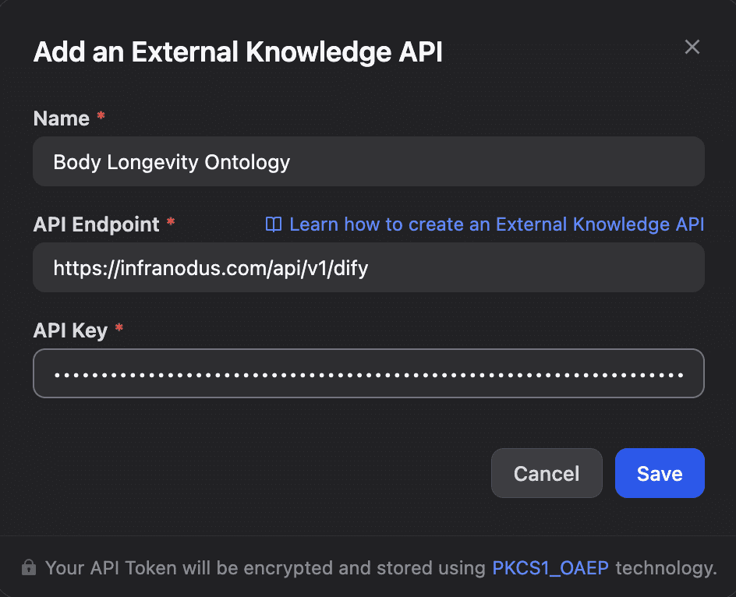
This API connection can be reused across multiple knowledge bases pointing to different InfraNodus graphs.
Linking Your Specific Graph
After creating the API connection, specify which InfraNodus graph to query:
- In the External Knowledge ID field, enter the exact name of your InfraNodus graph
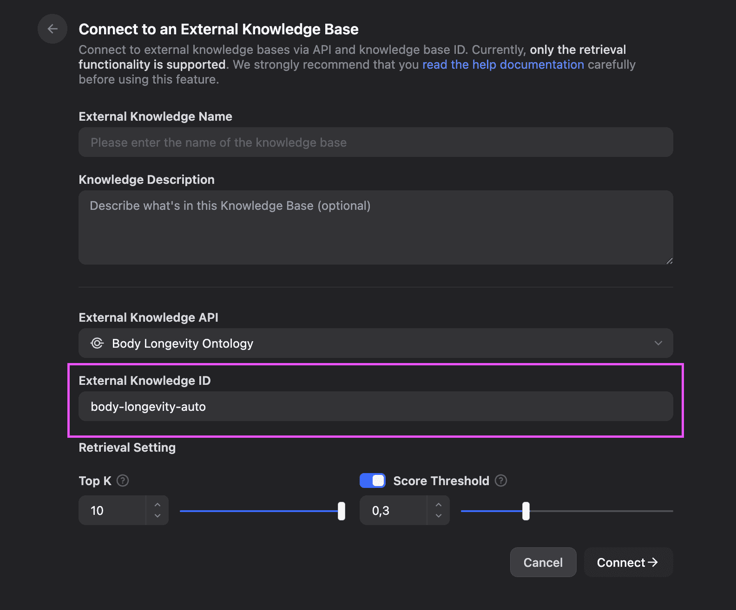
Important: Dify occasionally defaults to a different External Knowledge API than intended. Always verify the correct API is selected before proceeding.
Configuring Retrieval Parameters
Adjust the retrieval settings to optimize results:
- Top K: Set to 10 (recommended) to retrieve sufficient context
- Score Threshold: Set to 0.3 to include topical cluster statements
The lower threshold is intentional—InfraNodus returns not only directly matched statements but also top statements from each relevant topic cluster. These contextual results carry a similarity score of 0.3, providing valuable background information even when exact matches are limited.
If you prefer only direct matches, retain the default threshold of 0.5.
Step 3: Testing and Deploying Your Workflow
Verifying the Connection
Before building workflows, confirm the knowledge base functions correctly:
- Navigate to Knowledge in Dify
- Refresh the page (Dify sometimes delays displaying new external knowledge sources)
- Enter test queries and verify relevant statements are retrieved from your InfraNodus graph
Building a Basic Workflow
Create a workflow that leverages your external knowledge:
- Go to Studio > Create from Blank > AI Workflow
- Add a Knowledge Retrieval node:
- Click + in the node panel
- Select Knowledge Retrieval
- In Settings > Knowledge, click + and select your external knowledge source
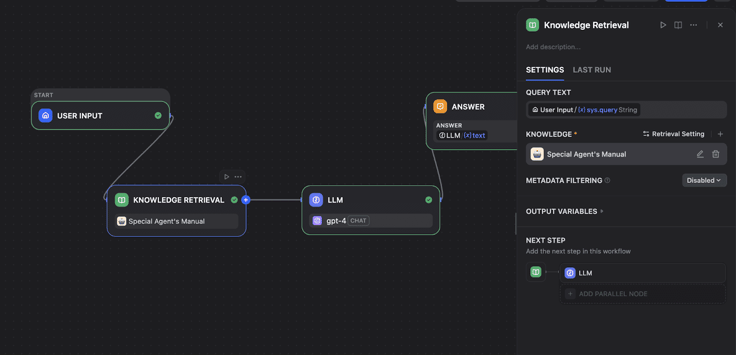
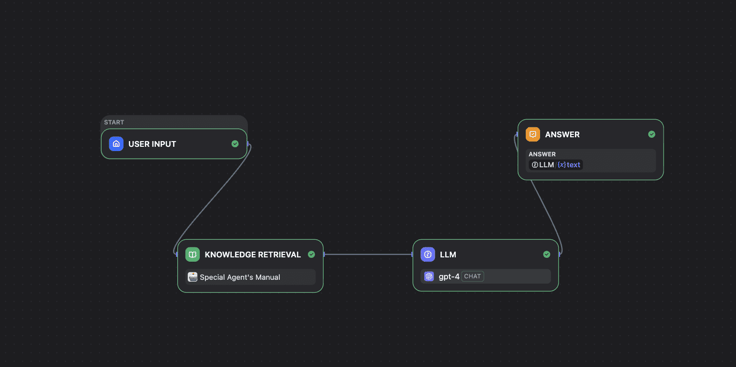
- Connect the nodes in this sequence:
- User Input → receives queries via chat interface or API
- Knowledge Retrieval → queries InfraNodus and returns GraphRAG + RAG results
- LLM → uses retrieved statements as context for response generation
- Answer → returns the final response to the user
Accessing Workflow Templates
For a ready-to-use implementation, import the workflow template from the InfraNodus GitHub repository:
github.com/infranodus/dify-infranodus
Maintaining Your Knowledge Base
One significant benefit of this architecture is simplified maintenance:
- Content updates: Add new information directly in InfraNodus via the text editor or import tools
- Automatic sync: Configure scheduled imports for sources like websites or RSS feeds
- Visual auditing: Use the graph visualization to identify coverage gaps or outdated content
- No re-upload required: Changes in InfraNodus are immediately available to Dify queries
Conclusion
Connecting InfraNodus as an external knowledge base brings GraphRAG capabilities to your Dify applications without requiring complex infrastructure changes. The visual graph interface provides transparency into your knowledge structure, while the hybrid retrieval approach ensures robust responses across both specific and general queries.
For additional integration patterns—including prompt augmentation workflows and advanced Q&A chatbots—explore the related tutorials in the InfraNodus documentation and Dify blog.
This tutorial was contributed by the InfraNodus team. For questions about the InfraNodus API or GraphRAG implementation, visit support.noduslabs.com.
Related articles
- How to
How to Create an AI Shopping Agent that Boosts Your Ecommerce Store
From catalog scraper and personalized recommendations to qualified lead capture, learn how to build an AI agent for your online store with Dify.
 Alex
Alex - How to
I Patched Calendly with New Agent
Use an Agent to make the software you already rely on work the way you work without rebuilding the whole thing.
Alex - How to
How to Build Your First Agent in Dify
Learn how to build an agent in Dify without coding or learning all the technical details. Create an agent, customize it through chatting, and use it as a standalone app or add it to the workflow.
 Anne Zhu
 - How to
How to Let Your Agent Call Dify Workflows Directly
Learn how to quickly invoke existing Dify apps, turning complex business workflows into a single prompt and one human approval.
 Zhenan Sun