












Workflows have come a long way from simple run-to-completion pipelines. Increasingly, they’re where humans and AI collaborate.
The old assumption was that a workflow runs from start to finish, no pauses. In practice, that’s rarely how things work. Content teams need to review AI drafts before publishing. Support teams need to hand off edge cases to a real person. And plenty of business processes have steps that simply can’t proceed without someone’s sign-off.
The common thread is clear. Automation can handle most of the work, but key decisions still need a human in the loop.
Dify v1.13.0 introduces the Human Input node to address exactly this, making human-AI handoffs a native part of any Workflow.
The Human Input Node
Human Input is a node you place on the Workflow canvas. When execution reaches it, the flow pauses and a form is sent to a designated person. They review the information, fill in any fields, and click a decision button. The workflow then picks up along the corresponding branch.
Unlike bolting on a separate approval system, Human Input builds the concept of "waiting for a person" right into the workflow. It’s a first-class component, same as an LLM node or a Knowledge Retrieval node. Drag it in, wire it up, and arrange it however you need.
Configuration
There are three things to configure on a Human Input node:
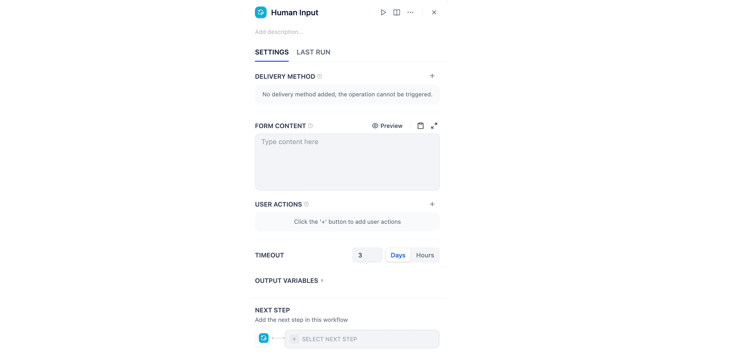
Delivery Method
This controls how the form reaches the right person. Two delivery options are available, each suited to different scenarios:
- Web App: Shows the form directly in the app interface so the current user can respond on the spot. Best when no one else needs to weigh in, for example reviewing AI-generated content before publishing or filling in extra details mid-flow.
- Email: Sends the form to someone via email. Ideal when the operator and the decision-maker are different people. For instance, pulling sensitive data might require a manager’s sign-off before results are returned. You can customize the email subject and body, and add workspace members or external addresses as recipients.
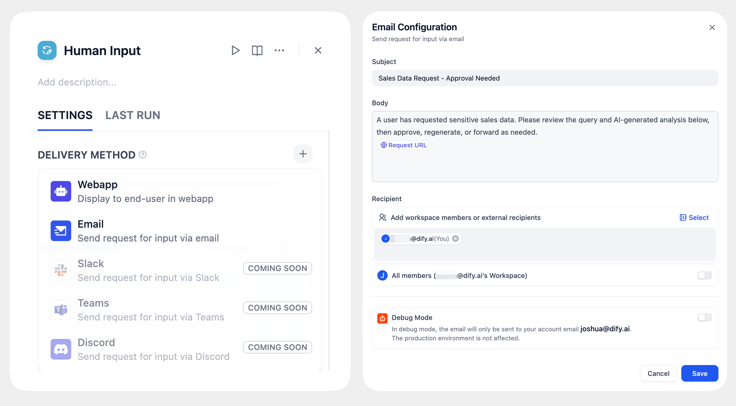
Either way, the form closes as soon as the first response comes in, and the workflow picks back up.
Form Content
The form is what the recipient actually sees and interacts with. It has two parts: a content area and decision buttons.
The content area supports Markdown and can pull in upstream variables to show dynamic data, like the user’s original question or the LLM’s generated answer.
To collect input, press ⌘/ (Ctrl/ on Windows) to insert an input field. It renders as an editable text box in the form. Give it a name when you insert it, and that name becomes an output variable downstream nodes can reference.
Input fields can be pre-filled. For example, drop in the LLM’s draft so the reviewer can edit it in place. Or leave the field blank and let the recipient write from scratch, say, to provide revision notes.
Decision buttons define what the recipient can do next. You set the number and labels yourself. Each button maps to a branch, and the workflow follows whichever path is chosen.
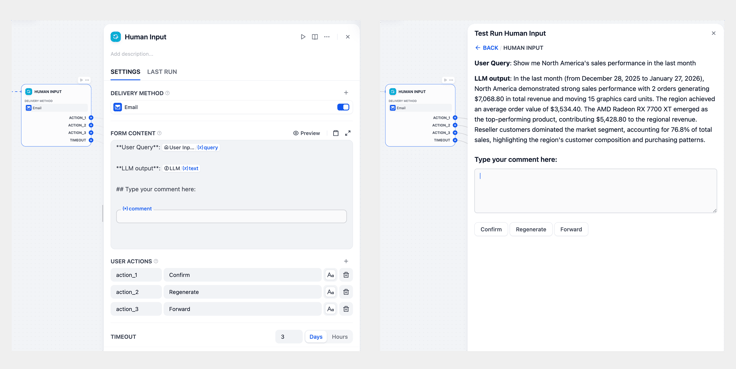
The example above shows a sales data analysis scenario. A user asks a question, the LLM generates an analysis, and the Human Input node pauses the flow to wait for confirmation.
| For routine queries, the operator can confirm directly via Web App. If the data is sensitive and needs a manager’s approval, use Email instead. |
The form shows the user’s question alongside the analysis results. The recipient can leave comments, then choose one of the following:
- Confirm: The analysis looks good and the data is safe to share. Return the results to the requester.
- Regenerate: Send revision notes back to the LLM for a fresh analysis.
- Forward: Pass it along to a colleague for their input.
When the recipient clicks a button, any input field content travels along as variables into the corresponding branch. Click "Regenerate," for instance, and the revision notes get passed straight to the downstream LLM node as context.
Timeout Policy
People don’t always respond right away. You can set a wait duration so the workflow ends automatically if time runs out. Or, configure a dedicated timeout branch to handle it gracefully, say, by sending a reminder or forwarding the task to someone else.
Walkthrough
Let’s walk through a full example to see how Human Input works end to end.
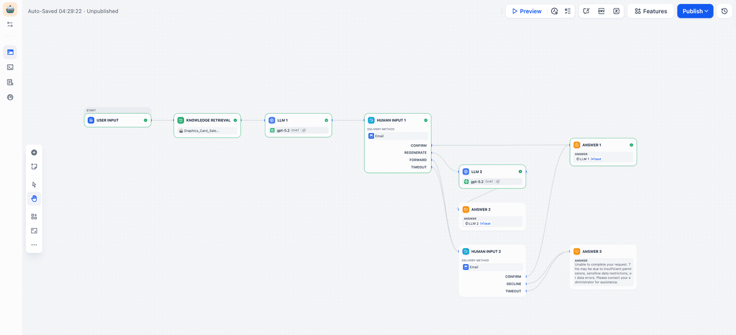
The scenario: enterprise sales data analysis. A user queries sales figures and the LLM generates a report. Because the data is sensitive, it needs a manager’s approval before being returned. The manager can approve, request a redo, or forward the request to a colleague. If nobody responds in time, it’s automatically escalated to a backup approver.
Data Prep and Analysis
The User Input node collects the query, something like "Show me North America’s sales performance in the last month." Knowledge Retrieval pulls the relevant data from a sales knowledge base, and LLM 1 generates the report.
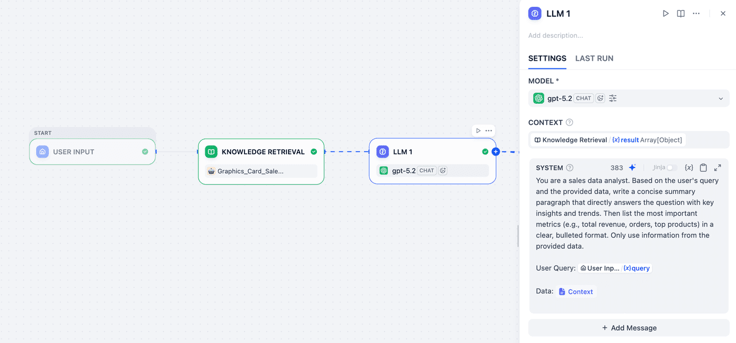
The analysis is ready, but it contains sensitive data so it can’t go straight back to the user. It needs approval first.
Human Input 1: Manager Approval
Once the LLM produces its results, the workflow pauses here and waits for the manager. Delivery is set to Email with a custom subject, body, and recipient. The approver gets the email and clicks a link to open the form.
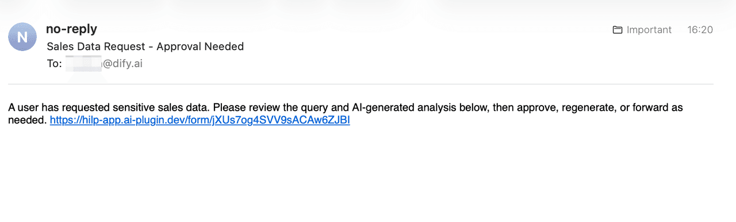
The form shows the user’s query and the LLM’s analysis. At the bottom, a comment input field lets the approver leave feedback. That field becomes an output variable available to downstream nodes.
Three decision buttons are set up: Confirm (approve), Regenerate (request changes), and Forward (escalate), each mapping to its own branch. Timeout is set to 3 days; if nobody responds, the request is automatically forwarded.
Branch Handling
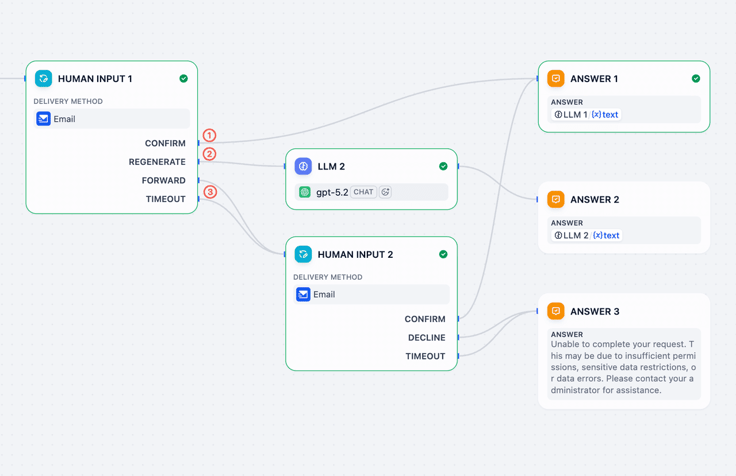
Branch 1: Confirm → Answer 1: Approved. Return LLM 1’s analysis directly to the user.
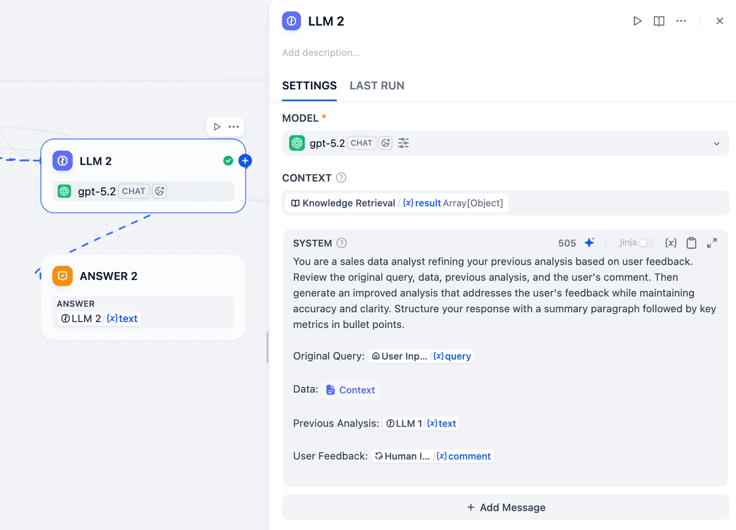
Branch 2: Regenerate → LLM 2 → Answer 2: The approver writes revision notes in the comment field and clicks Regenerate. LLM 2 picks up the original query, the data, the previous analysis, and the comment variable, then produces a fresh result based on that feedback.
Branch 3: Forward / Timeout → Human Input 2: Whether the manager forwards the request or the timeout expires, the flow enters a second round of approval and emails another colleague. This time there are just two choices, Confirm and Decline, forcing a final call.
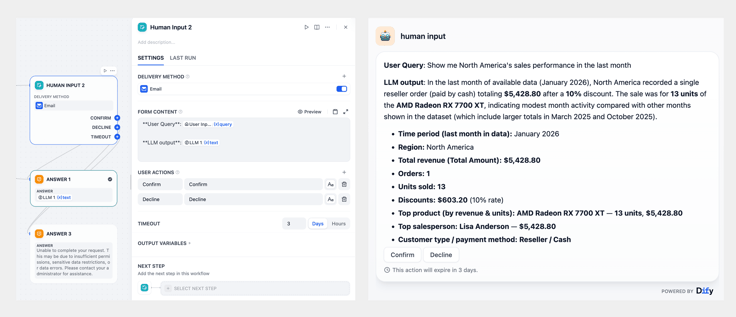
- Confirm → Answer 1: Approved, return the results.
- Decline / Timeout → Answer 3: Declined or timed out. Return a message: "Unable to complete the request. Please contact your administrator."
This single example covers the most common approval patterns: straightforward approval, regeneration with feedback, forwarding to another person, and a timeout fallback. In your own workflows, feel free to adjust the number of branches and routing logic to match your needs.
Wrapping Up
Human Input solves a real pain point. You no longer need to stand up a separate system just for one approval step. Human-in-the-loop collaboration now lives right inside the Workflow.
If this sounds like something you’ve been waiting for, upgrade to v1.13.0 and give it a spin. We’d love to hear what you think in the community.
Related articles
- Product
Dify x Sonilo: Give Your Video Workflows a Licensed Soundtrack
Turn finished videos into soundtracked outputs with Sonilo on Dify. Generate licensed music and sound effects matched to each cut, all within the same workflow.

 Sonilo & Dify
 - Product
From Discovery to Response: A More Connected Dify Marketplace
Good work goes further with better ways to find it, build with it, and share what you learn
 Yajing Wang
 - Product
Why We Redesigned Dify's Agent?
Discover how we redesigned Agent, and how we came to see agents and workflows not as isolated components, but as collaborators that support daily work.
Dify - Product
From Logs to Evidence: Asqav Joins Dify Marketplace to Make Every Agent Action Verifiable
Dify Agents can now produce verifiable, tamper-evident receipts for actions routed through Asqav, our ecosystem partner now live on Dify Marketplace.
 Asqav & Dify